The Workload View is the feature that makes antbase different from every other project management tool we've tried. Here's exactly what it does and how to get the most from it.
What you see
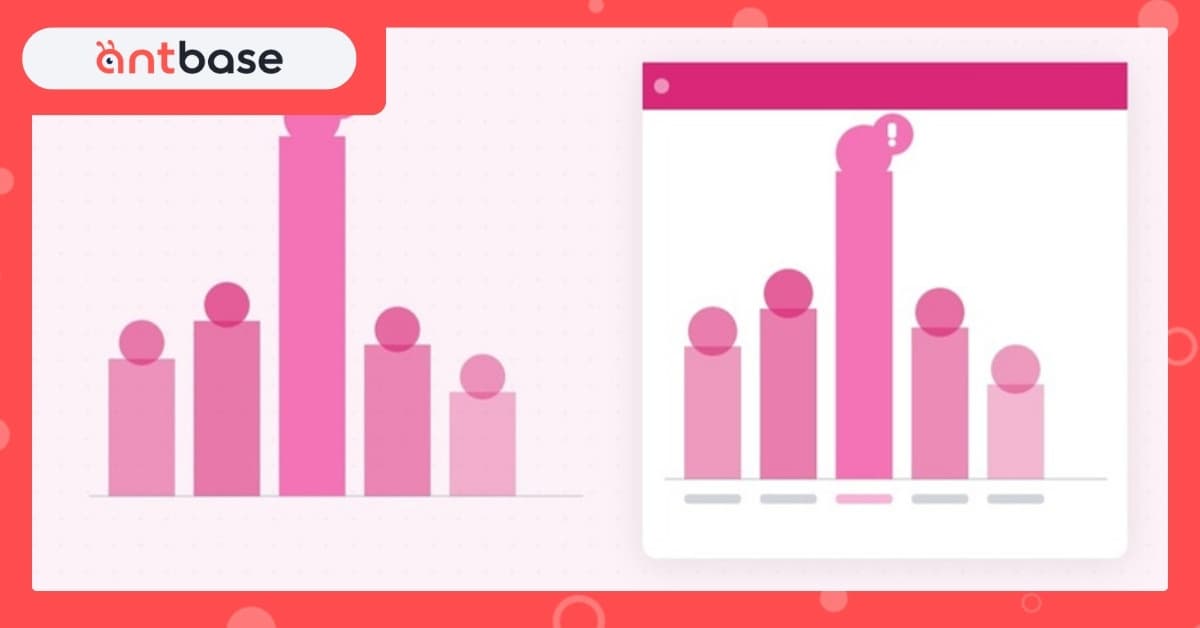
The Workload View shows every team member as a row, with their tasks plotted across a timeline (day, week, or sprint). At a glance, you can see:
- Who has how many tasks due on any given day
- Where the heaviest load concentrations are
- Who has capacity for new work
- Tasks that are overdue or have no due date assigned
How to read it
Color bands show load density. Green is healthy. Yellow is at capacity. Red is overloaded. The cutoffs are configurable — set them to match your team's norms.
The drag-to-reassign interaction
You don't just look at the Workload View — you work in it. Drag a task from an overloaded team member to someone with capacity. The assignment updates instantly. The team member gets notified. The timeline reflects the change immediately.
Using it in sprint planning
Open the Workload View as the last step of sprint planning, after all tasks are assigned. If anyone is in red, the sprint plan is broken — you just don't know it yet. Rebalance now. It's free. Doing it after the sprint has started is painful.
Using it mid-sprint
Check the Workload View every Monday morning. Two questions: Is anyone trending into red? Is anyone sitting at green with nothing coming up? One of these needs work added, the other needs work moved. Five minutes of Monday morning attention saves hours of Friday firefighting.
The weekly review ritual
The most effective teams we've seen use the Workload View as the centerpiece of their weekly sync. Pull it up on a shared screen. Walk through the red zones. Make assignments. Close the meeting. That's it.