My Tasks
Due dates and reminders
How to set due dates on tasks and receive reminders so nothing slips through the cracks.
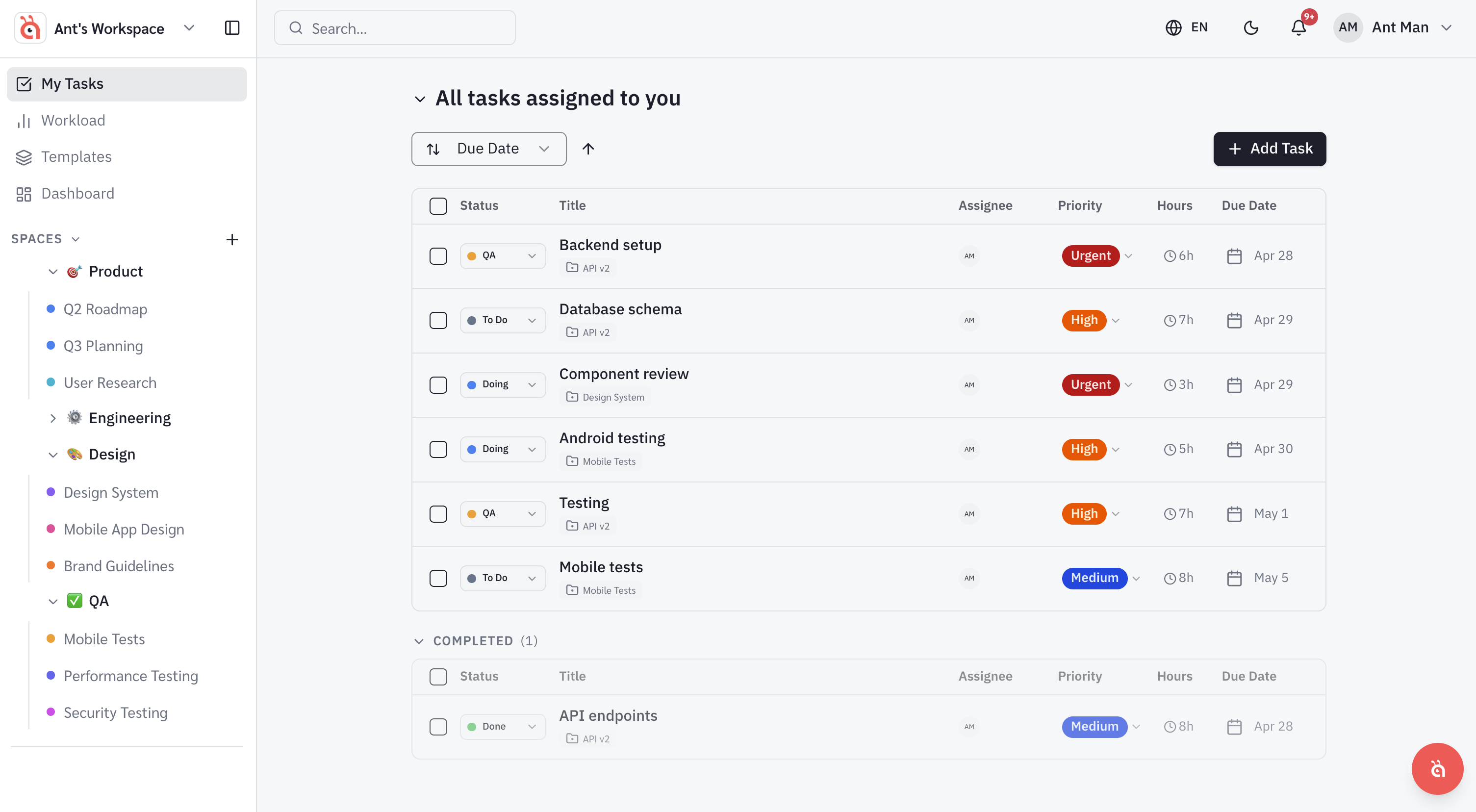
Due dates help your team stay on track. antbase sends automatic reminders so deadlines do not sneak up on you.
Setting a due date
Open any task and click the Due date field. Pick a date from the calendar picker. You can also set a specific time if the task has a hard deadline during the day.
Start dates vs due dates
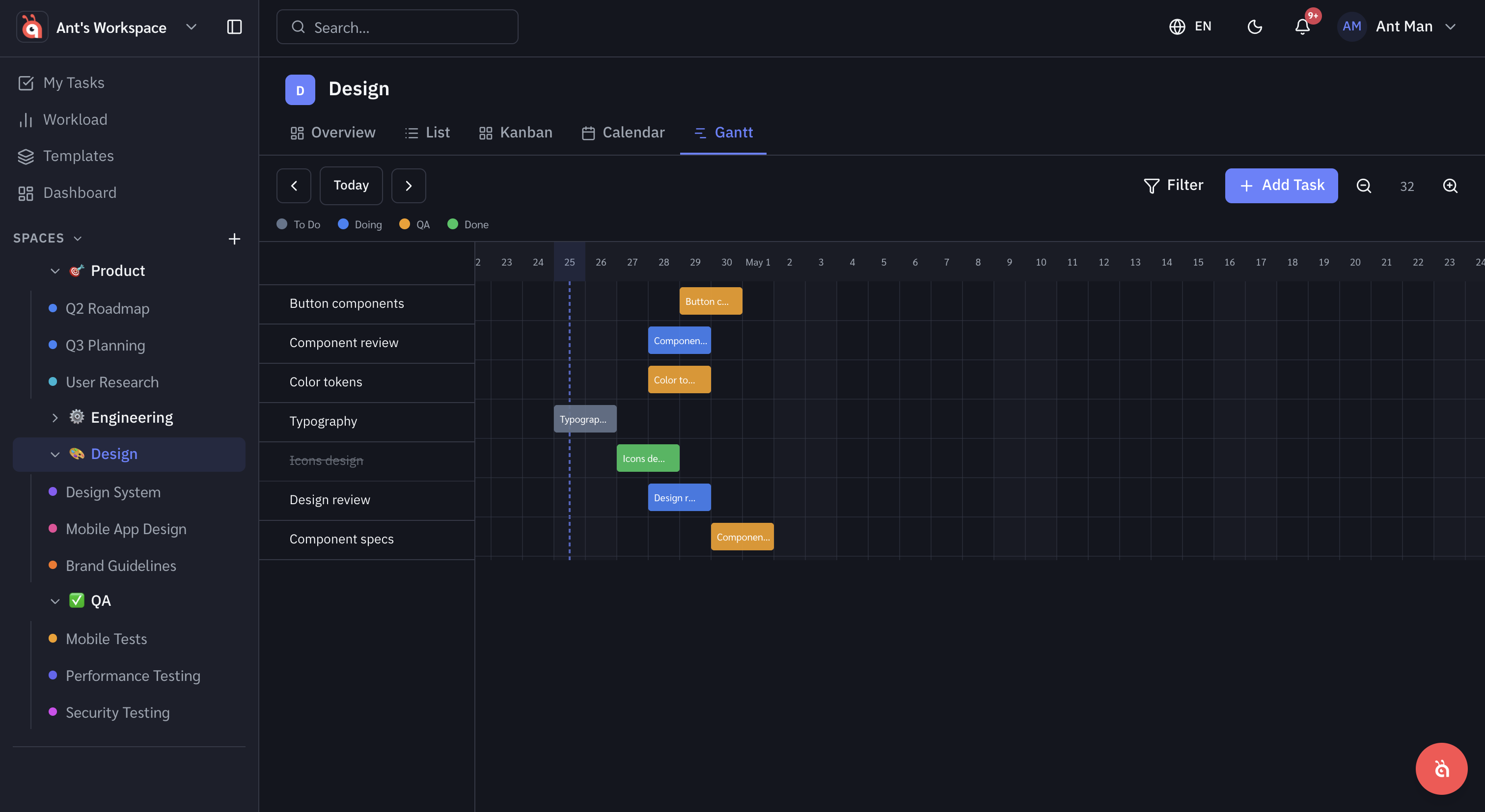
Tasks support both a start date and a due date. Start dates are useful for scheduling work that should not begin until a certain point — they appear in the Gantt view as the task's left edge.
Reminders
By default, antbase sends a reminder notification when a task is due. Go to Personal Settings → Notifications to customise how early you want to be reminded (same day, 1 day before, etc.).
Overdue tasks
Tasks past their due date are highlighted in red in My Tasks and the project view. They also surface at the top of the Workload view so managers can see slippage quickly.
Was this helpful?