My Tasks
Prioritising and filtering your tasks
How to use priorities, filters, and sorting in My Tasks to focus on what matters most today.
When your task list grows, priorities and filters help you cut through the noise and focus on what actually needs to get done.
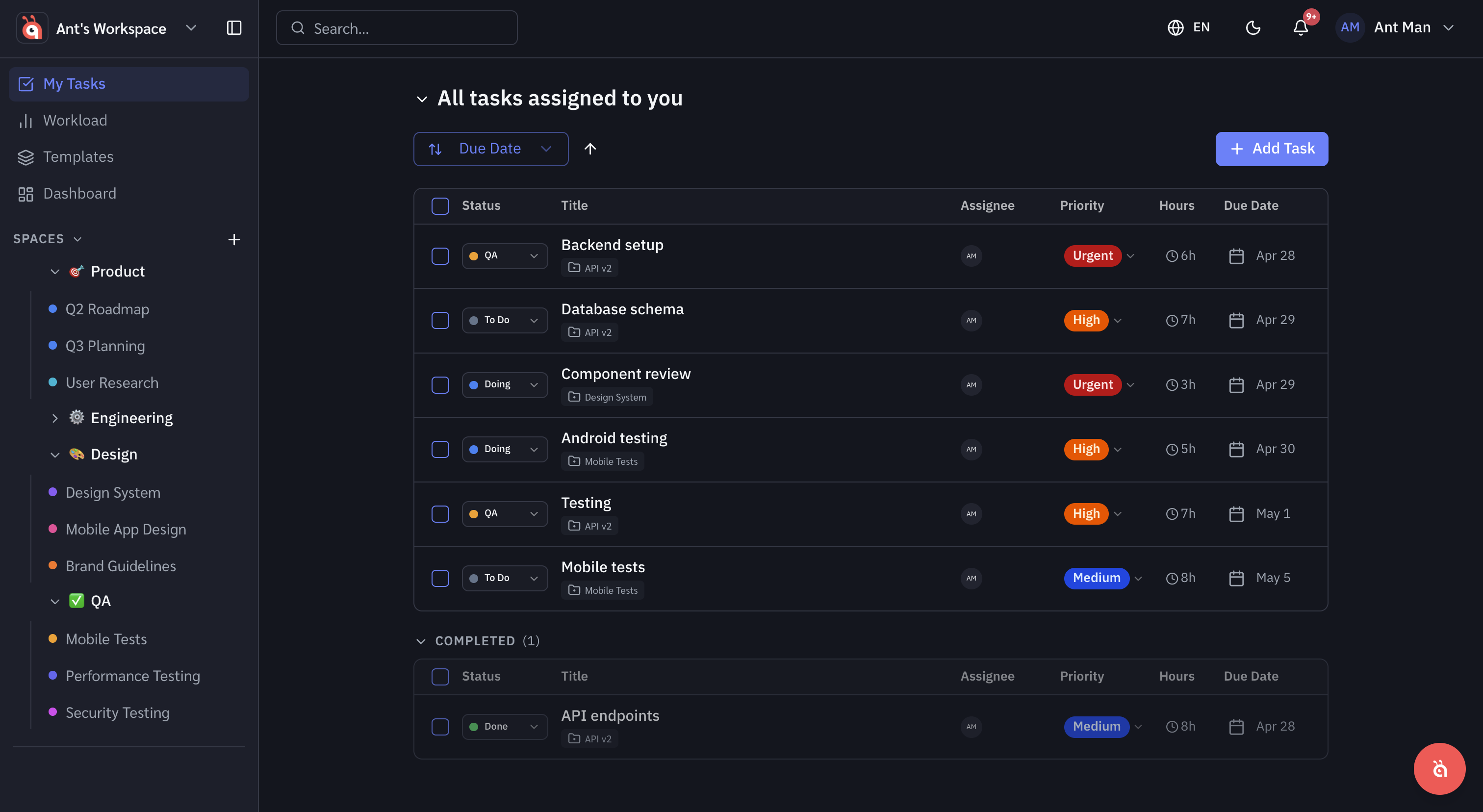
Setting task priority
Every task can be assigned a priority level: Urgent, High, Normal, or Low. Set it from the task detail panel or inline from the list view.
Sorting My Tasks
Click Sort in the toolbar to order your tasks by:
- Due date (earliest first)
- Priority (urgent to low)
- Project
- Last updated
Filtering by due date
Use the Due date filter to show only tasks due today, this week, or overdue. This is the fastest way to build a daily work list.
Saving a filter
Once you have set up a filter you use regularly, click Save filter to name it and access it with one click next time.
Was this helpful?