Workloads
Rebalancing team workload
How to use the Workload view to redistribute tasks when someone is overloaded.
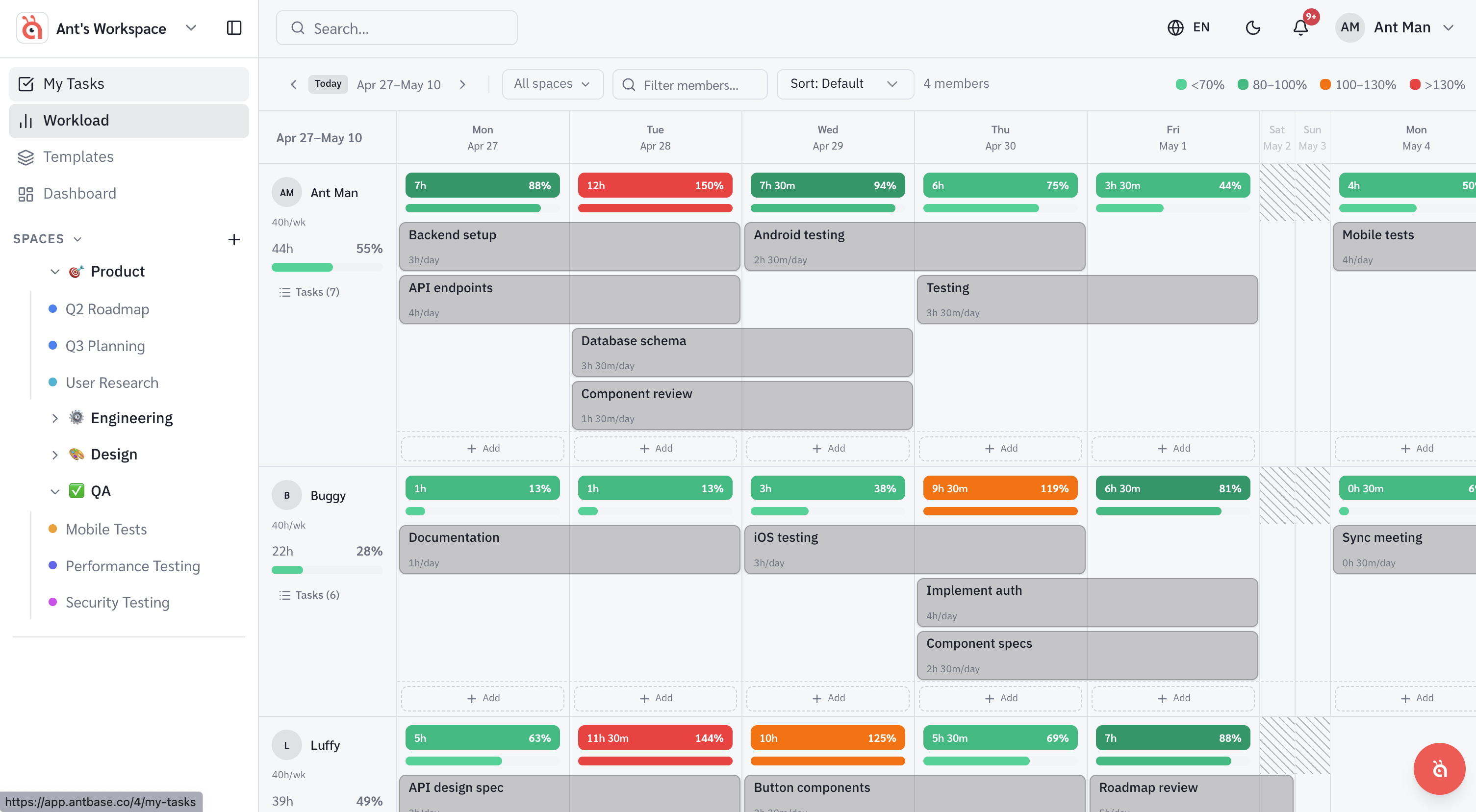
Spotting an overloaded team member is half the battle. Here is how to fix it without leaving the Workload view.
Reassigning a task
Click on any task block in the Workload view to open the task detail. Change the Assignee field to move the task to someone with more capacity. The workload chart updates immediately.
Moving a task to a different date
If the right person is just overloaded on one day, reschedule rather than reassign. Click the task and adjust the due date — the block shifts to the new date in the Workload view.
Using antbot to suggest rebalancing
Ask antbot: "Who has capacity this week?" or "Rebalance the sprint". antbot will analyse current assignments and suggest reassignments based on each person's workload.
Setting capacity limits
Go to Workspace Settings → Workload to set a daily task or hour cap per team member. This determines when the Workload view turns amber or red.
Was this helpful?